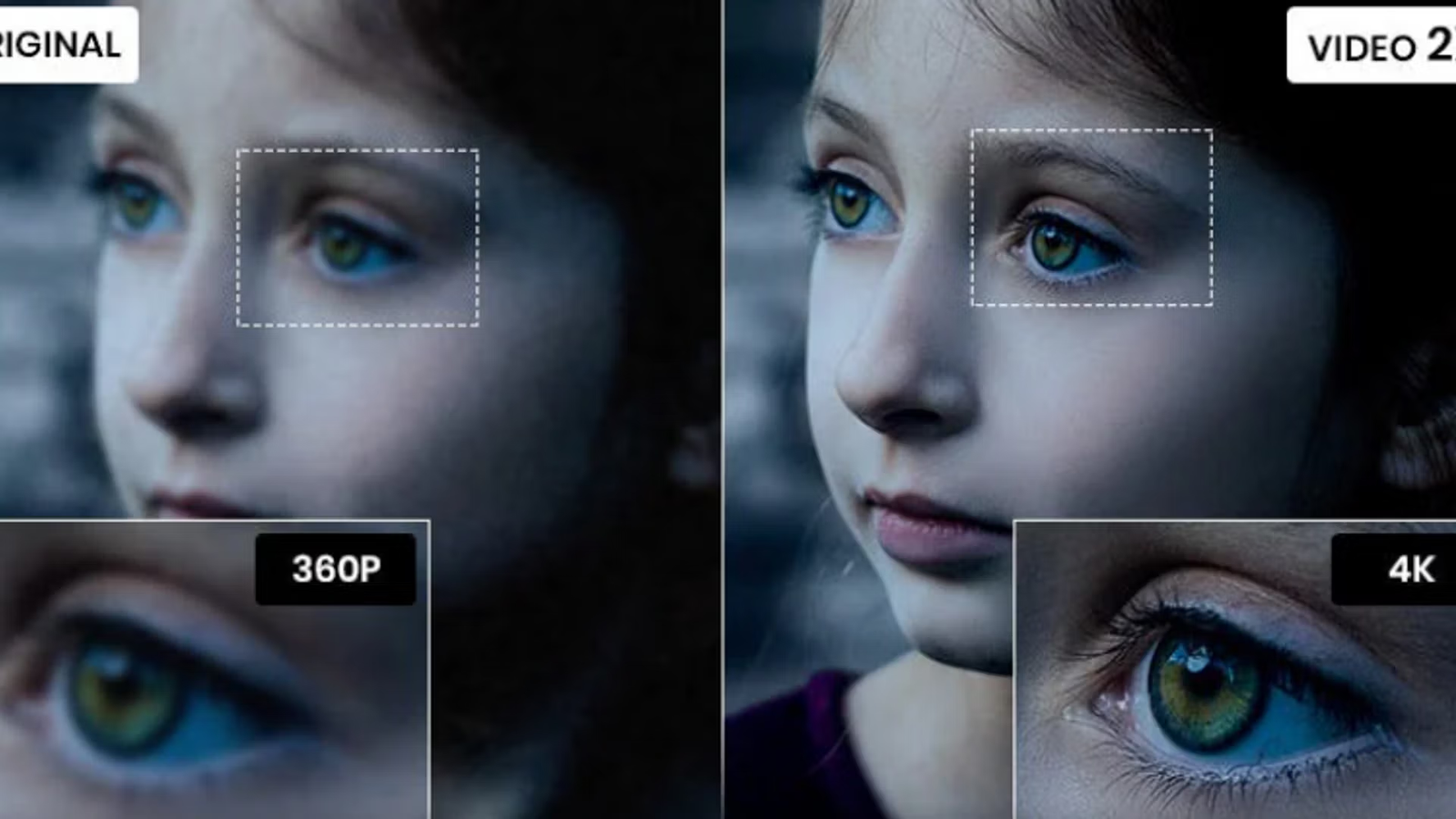
Have you ever tried enlarging a photo and noticed that it looked blurry? This problem is common with old pictures, small images, and low-quality videos. An AI upscaler can help improve their appearance using artificial intelligence.
Traditional resizing makes an image larger by adding pixels. However, this method may not restore clear details. AI-powered tools analyze image patterns and estimate missing information. This can make enlarged pictures look sharper and more natural.
Today, creators use these tools for photography, digital artwork, website images, and social media posts. Some tools can also improve video resolution. This guide explains how AI upscaling works, explores Magnific AI Upscaler, and shares practical tips for choosing the right tool.
What Is an AI Upscaler?
An AI upscaler is a tool that increases image resolution using artificial intelligence. It examines an image and estimates details that may improve its appearance. These details can include edges, textures, patterns, and facial features.
For example, imagine you have a small photograph of a mountain. Enlarging it with a basic editor might make the trees and rocks look blurry. An AI tool may create sharper-looking textures and clearer edges.
However, AI cannot always recover the original details. Sometimes, it generates new details based on learned patterns. These changes may look realistic but can be inaccurate. Always compare the enhanced picture with the original before using it professionally.
How Does AI Image Upscaling Work?
AI image upscaling uses machine learning models trained on image examples. These models learn patterns from photographs, illustrations, and other visual content. They use this knowledge to estimate how a larger image should appear.
First, you upload your picture. The software analyzes its pixels, edges, and visible textures. It then generates additional pixels to increase the image dimensions.
For example, a 500-by-500-pixel image can become 2,000 by 2,000 pixels with fourfold enlargement in each dimension. The result contains sixteen times as many pixels. However, this does not mean it contains sixteen times more genuine detail.
Different tools use different processing methods. Some focus on realistic photographs, while others support creative artwork. Your results depend on the software, settings, and original image quality.
Main Benefits of Using an AI Upscaler
An AI upscaler can make image editing easier for beginners and experienced creators. It can improve the appearance of small pictures without requiring advanced editing skills.
Common benefits include:
- Sharper appearance: Edges and textures may become clearer.
- Higher resolution: Small images can become suitable for larger displays.
- Photo restoration: Old photographs may look cleaner after enhancement.
- Creative freedom: Artists can prepare artwork for larger formats.
- Faster editing: Automated processing reduces manual work.
- Better presentation: Product photographs may look more polished.
For example, an online seller might have small product pictures that look poor on larger screens. AI enhancement may improve their presentation. However, sellers should check that the software does not change important product details.
What Is Magnific AI Upscaler?
Magnific AI Upscaler is associated with AI-powered image enlargement and creative enhancement. Such tools aim to increase resolution while improving or generating visual details.
Creative upscaling can be useful for digital artwork, landscapes, illustrations, and concept designs. For example, an artist might enlarge a fantasy landscape and enhance the textures of mountains, clouds, and buildings.
However, creative enhancement can sometimes change facial features, object shapes, or small details. This may be acceptable for artistic projects but unsuitable for images requiring accuracy.
Before choosing Magnific AI Upscaler, check its current features, pricing, processing limits, and commercial-use terms. Try a sample image first. This helps you decide whether its results match your expectations.
AI Upscaler vs. Traditional Image Resizing
Traditional resizing and AI upscaling both increase image dimensions. However, they use different methods.
Traditional software calculates new pixels using information from existing pixels. AI tools use learned patterns to estimate additional details. This can produce sharper results, although it may also introduce inaccurate features.
| Feature | Traditional Resizing | AI Upscaling |
|---|---|---|
| Main purpose | Change image size | Enlarge and enhance images |
| Detail improvement | Usually limited | Can estimate new details |
| Processing speed | Often faster | Depends on the tool |
| Best use | Basic resizing | Enhancement and restoration |
| Main limitation | May look blurry | May invent details |
Traditional resizing remains useful for simple graphics and routine website images. AI enhancement may be more suitable when an image needs additional detail. Choose the method that best matches your project.
What Is a Video AI Upscaler?
A video AI upscaler improves video resolution by processing individual frames. It can help older footage look clearer on modern screens.
For example, a tool may enlarge compatible 480p footage to 1080p. It may also improve edges or reduce some compression artifacts. However, results depend on the original recording and the software.
Video enhancement is more complex than processing one photograph. Changes between frames can cause flickering or unnatural textures. Motion blur and poor lighting can also limit the results.
Before selecting a video AI upscaler, check supported formats, output resolutions, processing speed, and hardware requirements. Test a short clip before processing a full video. Carefully inspect faces, moving objects, and fine details.
Best Uses for AI Image Upscaling
AI enhancement can support several creative and professional tasks. The best settings depend on your image type and intended result.
Product photography: Online stores can improve the appearance of smaller product images. Always check that labels, shapes, and colors remain accurate.
Old photographs: Family pictures may become clearer after careful enhancement. Keep the original scan because generated facial details may not be accurate.
Digital artwork: Artists can enlarge illustrations and improve selected textures. Creative settings may produce interesting results for concept art.
Social media graphics: Creators can prepare images for posts, thumbnails, and banners. However, starting with a suitable image size is usually preferable.
Website images: Website owners may improve older images for articles and landing pages. Remember that larger files can affect loading speed.
How to Use an AI Upscaler Step by Step
Using an AI upscaler is usually simple. Follow these steps to improve your results.
- Choose the original image: Use the highest-quality file available.
- Select a suitable tool: Match the software to your image type.
- Upload your picture: Check the supported file formats and size limits.
- Choose the resolution: Select an output size that meets your needs.
- Adjust the settings: Begin with moderate sharpening and enhancement.
- Process the image: Let the software generate the enlarged version.
- Compare the results: Check faces, text, edges, and background details.
- Save the final image: Export it in a suitable format and keep the original.
Avoid increasing the resolution more than necessary. Excessive enhancement may create unrealistic details. Comparing several settings can help you find a natural-looking result.
How to Choose the Right AI Upscaler
Different tools offer different features. Choosing carefully can save money and improve your workflow.
First, check the maximum output resolution. A social media post may need a smaller image than a large print.
Next, consider the type of content you want to improve. Portraits, landscapes, illustrations, and videos may require different processing models.
Pricing is another important factor. Some services provide limited free processing, while others require subscriptions or credits. Check export limits and commercial-use permissions before paying.
Privacy also matters. Review how the provider stores uploaded images and handles personal information. Avoid uploading sensitive photographs without understanding the service’s privacy terms.
Finally, test a real image before making a purchase. Compare sharpness, processing time, ease of use, and cost. A practical test can reveal more than promotional examples.
Common AI Upscaler Problems and Solutions
Even a capable AI upscaler can produce unwanted results. Understanding common problems can help you correct them.
- Unnatural faces: Lower enhancement settings and compare facial features.
- Over-sharpening: Reduce sharpening to avoid bright outlines.
- Invented textures: Use conservative settings when accuracy matters.
- Blurry text: Recreate text using the original source when possible.
- Large files: Export at the resolution your project actually needs.
- Video flickering: Test moving scenes and check frame consistency.
These problems show why checking the final result is important. Do not assume that every enhanced image is automatically better. Small adjustments can often produce more natural results.
Tips for Getting Better Upscaling Results
Start with the cleanest image available. Heavy compression, noise, and motion blur can reduce the quality of the final result.
Choose a sensible enlargement level. A smaller increase may look more natural than an extreme enlargement. Use creative settings only when you want noticeable artistic changes.
Compare the original and enhanced versions at the same display size. Zoom in to inspect important details, then view the complete image to judge its overall appearance.
Keep the original file and save different versions. This allows you to compare settings without losing your starting point.
Finally, select a suitable export format. JPEG works well for many photographs, while PNG can preserve image data without additional loss during saving. For video, choose appropriate resolution and bitrate settings.
Is an AI Upscaler Worth Using?
An AI upscaler can be valuable for photographers, designers, website owners, and content creators. It may improve low-resolution images and make certain older photographs easier to view.
However, results depend on the source material. A slightly blurry picture may improve noticeably, while a tiny, heavily compressed image may remain imperfect.
Free tools can meet basic needs. Paid software may provide more controls, larger exports, or specialized features. Compare these benefits with your actual requirements before purchasing a subscription.
For product photography, historical images, or important records, remember that AI-generated details are not verified facts. Keep the original and check every important change.
Conclusion
An AI upscaler can help enlarge images and improve their apparent sharpness. It supports projects involving photographs, digital artwork, website graphics, and video content.
Magnific AI Upscaler may suit creative image enhancement, while a video AI upscaler can help improve compatible footage. Your best choice depends on your budget, image type, and accuracy requirements.
Start with a good source image, use sensible settings, and inspect the result carefully. Test different tools before committing to a paid plan. Have you tried AI image enhancement? Share your experience and the types of images you want to improve.
Frequently Asked Questions
1. What is an AI upscaler used for?
An AI upscaler increases image resolution and estimates additional details. People use it for photographs, artwork, product images, and digital graphics.
2. Is Magnific AI Upscaler suitable for beginners?
It may suit beginners interested in creative image enhancement. Review its current features, pricing, and controls before deciding whether it meets your needs.
3. Can an AI upscaler improve blurry images?
Yes, it may improve sharpness and estimate missing details. However, severe blur and missing information can limit the final result.
4. What does a video AI upscaler do?
It increases video resolution and may improve apparent sharpness. Results depend on the original footage, processing model, and consistency between frames.
5. Is an AI upscaler free?
Some tools offer free trials or limited processing. Others require subscriptions or credits. Check current pricing and export limits before choosing one.
6. Can AI upscaling create new details?
Yes, AI may generate details that were not visible in the original image. These details can look realistic but may be inaccurate, so always inspect the result.
